How to Set Up vSeeBox V6 Plus
A straightforward guide to connecting the V6 Plus hardware, preparing the Bluetooth remote, getting online and checking basic display and system settings.
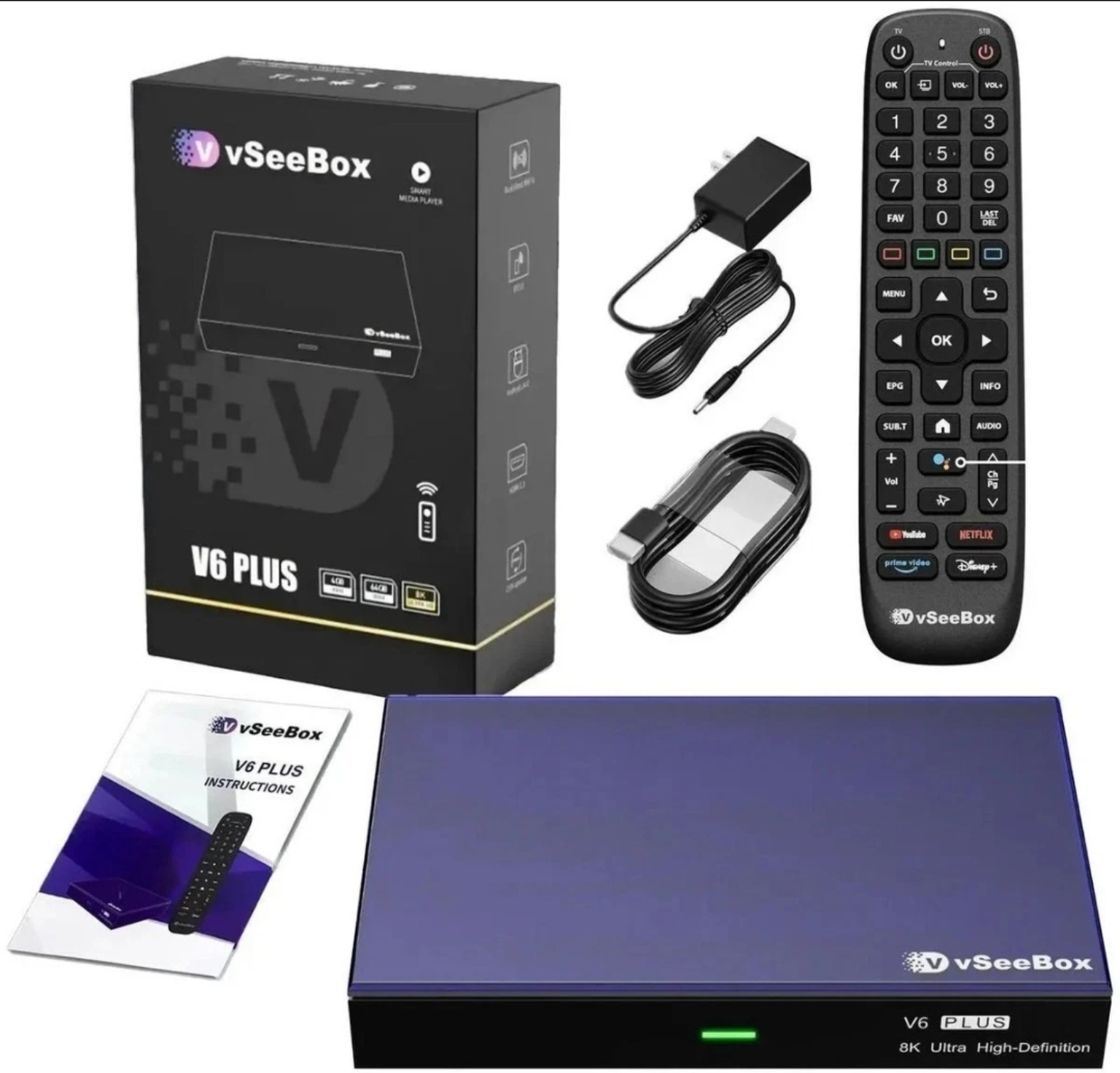
V6 Plus Setup Steps
Before starting, have the V6 Plus, supplied power adapter and HDMI cable ready. The remote uses two AAA batteries.
Connect the HDMI cable
Connect the V6 Plus HDMI output to an available HDMI input on your television using the included HDMI cable.
Connect power
Connect the supplied DC 5V / 2A power adapter to the V6 Plus, then connect the adapter to power.
Prepare the Bluetooth remote
Install two AAA batteries in the remote. If an on-screen Bluetooth pairing prompt appears during startup, follow the instructions shown on the television.
Select the correct TV input
Turn on the television and select the HDMI input where the V6 Plus is connected. The device should display its startup screen.
Connect to your network
Open the device network settings and connect to your Wi-Fi network, or connect an Ethernet cable to the RJ-45 10M/100M LAN port for a wired connection.
Check display and audio settings
Use Android system settings to confirm the display resolution and audio output are appropriate for your television and audio equipment.
Check for OTA updates
Once connected to the internet, use the system settings to check for available OTA system updates. Follow the on-screen instructions if an update is offered.
Basic Troubleshooting
If setup does not go as expected, these hardware checks can resolve common first-start issues.
No picture
Confirm the V6 Plus has power, the HDMI cable is fully connected at both ends, and the television is set to the matching HDMI input.
Remote not responding
Confirm two AAA batteries are installed correctly. If the device presents a Bluetooth pairing screen, follow that on-screen process.
No network connection
Recheck the Wi-Fi network selection and password. For wired networking, confirm the Ethernet cable is seated in the RJ-45 port and router.
Display does not look right
Review the Android display settings and choose a resolution supported by your television. HDMI compatibility can vary by display and cable.
Need the hardware details?
See the complete V6 Plus specifications, ports and included accessories, or return to the storefront for pricing and ordering.